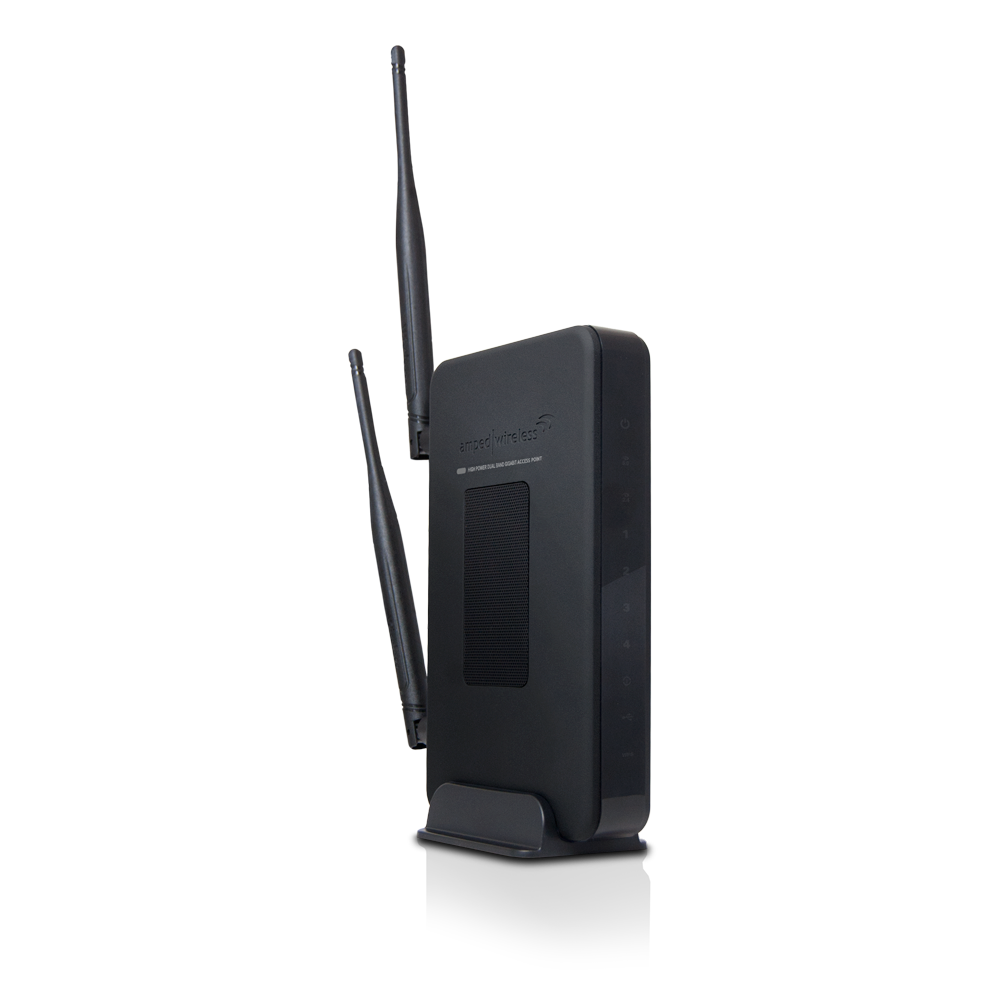
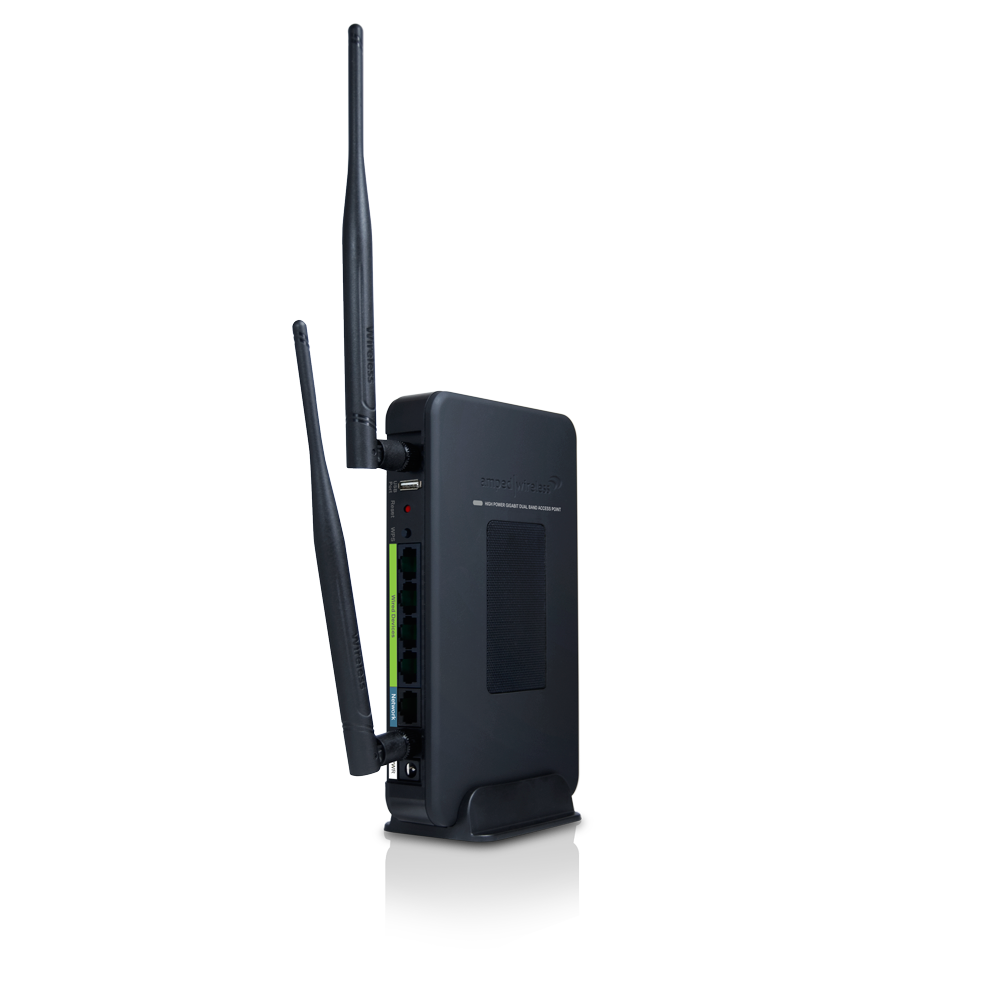
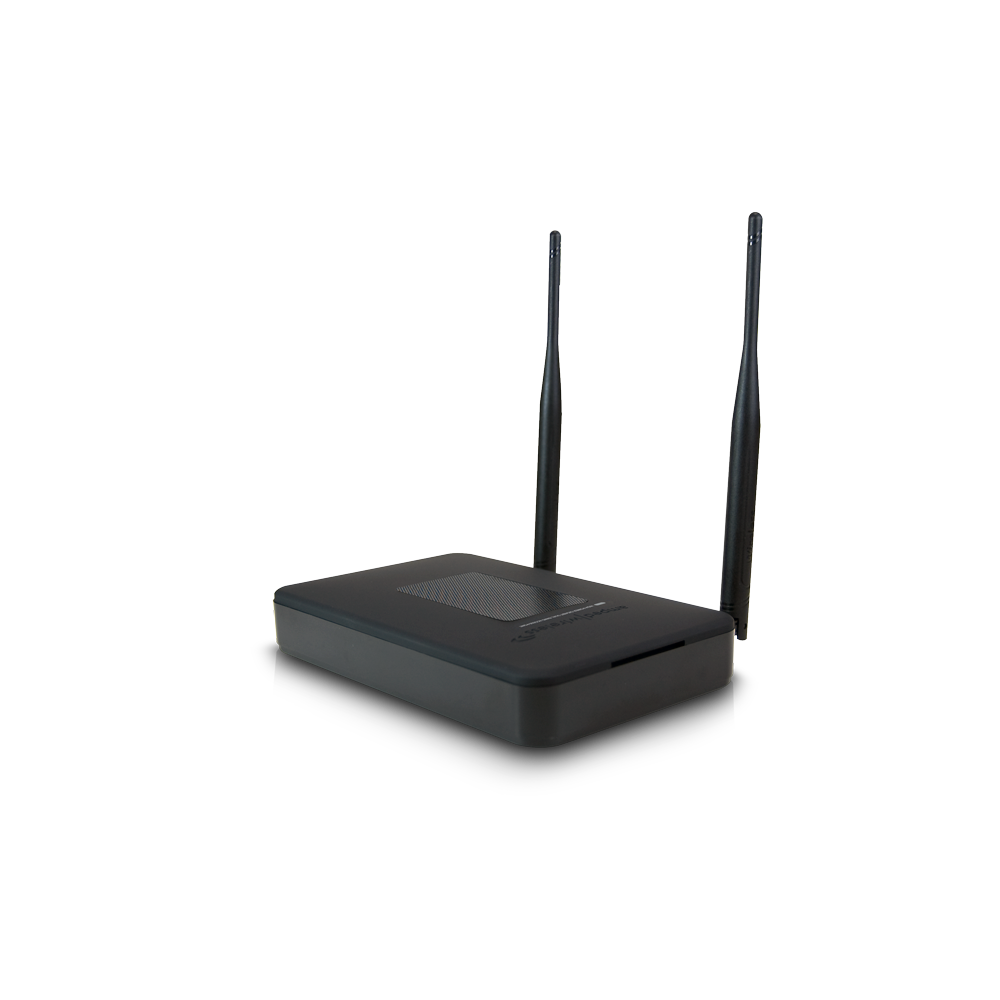
High Power Wireless-N 600mW Gigabit Dual Band Access Point
SKU
AP20000G
Extend the range of your wireless network
Browse the selections below to view support materials and troubleshooting tips. FAQs provide you with answers to frequently asked questions. The Download section provides you with firmware upgrades or device drivers and other related software. To view the User's Guide for your product check out the Documentation section. If you are having problems finding what you need, contact us.
Make sure your computer is connected to the Access Point wirelessly and NOT using a network cable. Ensure the power is plugged in and on. Try to access the setup menu again.
Enter the following web address into your web browser instead of ‘setup.ampedwireless.com’: http://192.168.80.240
Power off (unplug the power adapter) the Access Point and power it back on. Try again.
Try to open your web browser to the default IP address by putting this number into your web browser instead: 192.168.80.240
Reset your Access Point to default settings by holding the Reset Button (located on the back panel) for ten (10) seconds and try again.
If you are using a Static IP, you will need to enter the assigned IP Address into the web browser to access the web menu. When using a Static IP, the setup.ampedwireless.com shortcut will no longer work.
Your router or original network may not have Internet access. First check to see if you are able to access the Internet by connecting directly with your router. If you cannot, there is a problem with your router that needs to be fixed first. If you are able to access the internet, continue with the following troubleshooting options below.
Your router may be using Static IP assignments. If so, you will need to configure a Static IP for the Access Point. Connect your PC to the Access Point using an Ethernet cable. Disconnect your PC from any wireless networks that it may be connected to. Access the web menu at setup.ampedwireless.com using a web browser. Access the IP settings menu from the left hand navigation bar. Select ‘Disable’ under the DHCP dropdown menu and enter an IP address that matches your router’s IP settings.
Detach the Access Point from your router and reset it back to default settings by holding down the reset button (red circle) on the back panel of the Access Point for 5-10 seconds. After it has reset, reattach it to your router’s network port. Allow up to 2 minutes for the Access Point to reconfigure itself to your network and attempt to access the Internet through the Access Point’s wired or wireless network.
The settings on your router’s network may have changed or you may have lost internet connection on your home router. Any changes to the DHCP settings of your home router may affect the Internet connection of the Access Point. Check the settings on your router and try again.
Reboot the Access Point by unplugging the power adapter and plugging it back in. Allow up to 2 minutes for the Access Point to reconfigure itself to your network. Check to see if your connection has been reestablished by viewing a website.
Double check that you are connected to the Access Point and not to your home router. Use an Ethernet cable and attach it between your computer and the Access Point. Disconnect your computer from all wireless networks and try to access the web menu again.
If you are advanced in networking troubleshooting, log onto your home router’s web interface. Look for the DHCP client list and try to find the IP address of your Access Point assigned by your home router. Once you have it, connect to the Access Point using an Ethernet cable. Open your web browser and enter the IP address into the address bar.
Reset the Access Point back to default settings and try the Basic Setup again. To reset the Access Point back to default settings, hold the Reset Button (on the back panel) down for five (5) to ten (10) seconds. After the Access Point has fully reset, use an Ethernet cable and connect to the Access Point. Log in to the web menu at http://setup.ampedwireless.com and reconfigure the settings for your Access Point.
You may be too far away from the wireless network. Wireless data transfer speeds degrade as distances increase between your computer and the Access Point.
You may be downloading from the Internet and not within your local network. Files transferred through the Internet are limited by your ISP speed and the data download speeds from the website that you are downloading from.
Your computer may be using an older Wi-Fi adapter with lower speed limits (802.11b/g).
You may have interference on the wireless channel that the Access Point is currently using. Try changing the channel of your wireless network.
Step back at least 10 feet from the Access Point and check your signal again. The Access Point emits high power, long range Wi-Fi signals that may confuse your wireless adapter signal reading at close range. The speed and signal are at 100%, however your readout may not be displaying the data correctly.
The wireless channel that your network is running on may be congested. Change the wireless channel on your Access Point.
Check to see that your wireless output settings are at 100%. Go to the web menu, Wireless Settings and check the Advanced Settings. Make sure the output power is at 100%.
Your Access Point may be installed in a poor location. Avoid setting up your Access Point in areas with high interference, such as near fridges, microwaves, metallic objects and low surfaces. Install the Access Point in a higher location if possible.
Check the connections of the Antennas to the Access Point. Tighten them if necessary.
Adjust the Antennas of the Access Point in different angles.
The Access Point supports WPS connections, however, some companies may use proprietary code for their own push button configurations. Try connecting using the Windows wireless utility or Mac wireless utility instead.
Extreme Range Dual Band Wi-Fi Coverage Add long range wireless Internet access to your home or office. Dual 2.4GHz high power amplifiers, dual 5.0GHz high power amplifiers and dual high gain dual band antennas provide the power to add up to 7,500 sq. ft. of amplified dual band wireless coverage.
Double the Bandwidth with Simultaneous Dual Band Technology The High Power Dual Band Wi-Fi Access Point doubles your bandwidth by creating a 2.4GHz Wi-Fi network with long range access and a 5.0GHz Wi-Fi network with less interference, that's great for lag free HD media streaming. Both networks run simultaneously to provide maximum throughput with minimal interference.
Penetrate Walls and Eliminate Dead Spots Four high power amplifiers, four low noise amplifiers and two high power dual band antennas provide powerful Wi-Fi coverage that easily penetrates walls and Wi-Fi obstructions to provide Wi-Fi coverage in hard to reach areas.
Add Additional Gigabit Networking Connections The High Power Dual Band Access Point provides up to four 10/100/1000M network ports for connecting additional wired computers, A/V devices and other network devices at ultra-fast wired speeds.
Powerful Processor The High Power Dual Band Access Point features a powerful 620MHz internal processor for computing networking commands at blazing speeds which results in faster wired and wireless speeds.
USB Storage Support Attach a USB storage device, such as an external hard drive or flash drive, to share at home or in the office with other networked computers.
Smart Security Features You're in control! Smart security features allow you to restrict access to specific users, set a daily time schedule for when the wireless network is available and when it is not and control how far your wireless network coverage reaches through wireless output power adjustments. The Access Point also supports secure push button setup for WPS enabled devices.
Guest Networks Create additional wireless networks for guests or conference rooms.
No Setup Required: True Plug and Play The Access Point connects to an available network port on your router and automatically configures itself to your network. There's no additional setup or software necessary.
Great for Large Homes and Offices The high power Wi-Fi capabilities of the High Power Dual Band Access Point is great for providing powerful wireless coverage for larger homes, backyards, offices and warehouses.
Specifications are subject to change without notice.
* Range specifications are based on performance test results. Actual performance may vary due to differences in operating environments, building materials and wireless obstructions. Performance may increase or decrease over the stated specification. Wireless coverage claims are used only as a reference and are not guaranteed as each wireless network is uniquely different. Maximum wireless signal rate derived from IEEE 802.11 standard specifications. Actual data throughput may vary as a result of network conditions and environmental factors. N600 wireless signal speeds achieved when connecting to other N600 or later 802.11n/ac devices. Output power specifications are based on the maximum possible radio output power plus antenna gain.
May not work with non-standard Wi-Fi routers or routers with altered firmware, such as those from third party sources or those with proprietary software. May not work with routers that do not comply with IEEE standards.
Wi-Fi, Wi-Fi Protected Setup, and WPA2 are either registered trademarks or trademarks of the Wi-Fi Alliance.
Fixed Internet Explorer 10 and Safari touch screen button errors.
Added stability for Apple AirPrint, AirPlay and Home Sharing.
Important: Before upgrading firmware, always save your current settings from the Save/Reload Settings page.
To access from the web menu: More Settings > Management > Save/Reload Settings > Save Settings to File After the firmware updates, load your saved settings to keep your existing configurations.
Wireless 802.11a/b/g/n 2.4GHz or 5.0GHz Network Computer with wired (RJ-45) or wireless (802.11a/b/g/n) adapter
Package Contents:
1 x High Power Wireless-N 600mW Gigabit Dual Band Access Point 2 x Detachable High Gain Dual Band Antennas 1 x Power Adapter (100-240v) 1 x RJ-45 Ethernet Cable 1 x Setup Guide 1 x CD: User's Guide 1 x Stand for vertical mounting
Specifications are subject to change without notice.
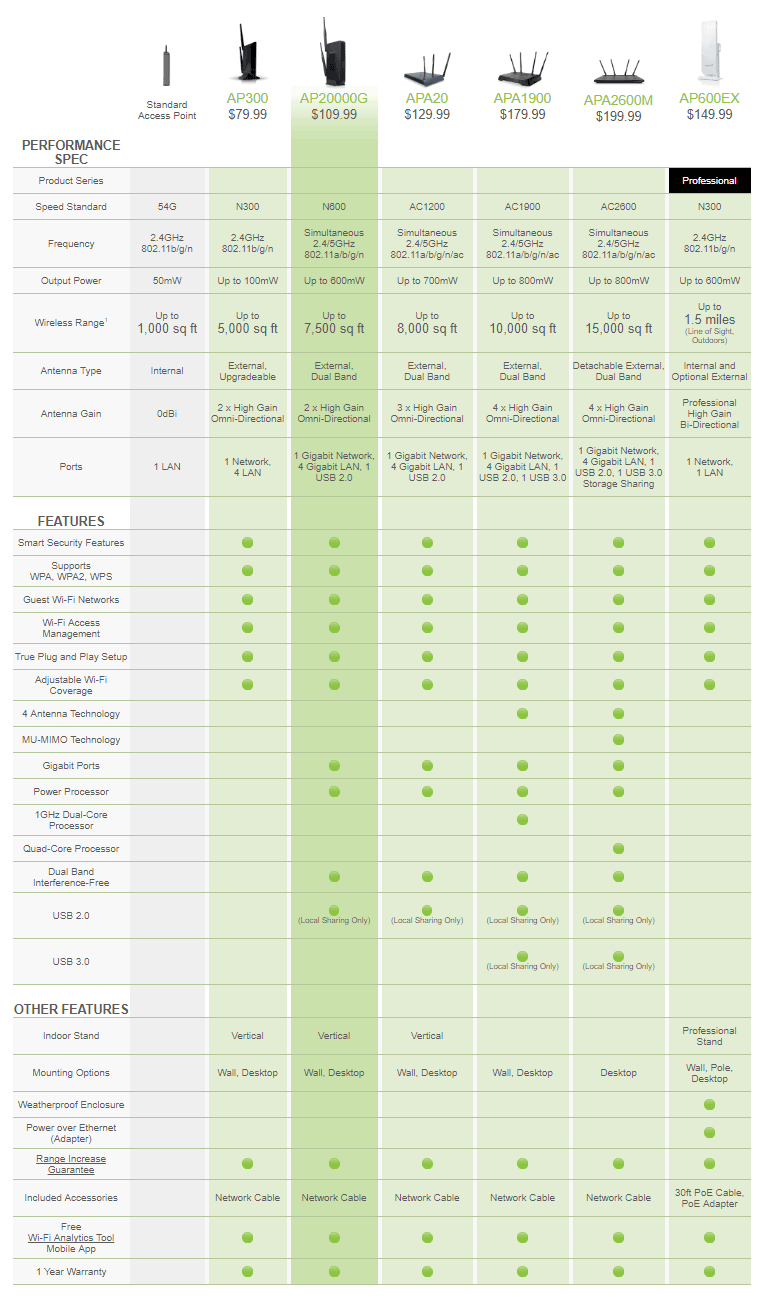
1 Range specifications are based on performance test results. Actual performance may vary due to differences in operating environments, building materials and wireless obstructions. Performance may increase or decrease over the stated specification. Wireless coverage claims are used only as a reference and are not guaranteed as each wireless network is uniquely different. Maximum wireless signal rate derived from IEEE 802.11 standard specifications. Actual data throughput may vary as a result of network conditions and environmental factors. Output power specifications are based on the maximum possible radio output power plus antenna gain. May not work with non-standard Wi-Fi devices such as those with proprietary software or drivers. Supports all Wi-Fi standards that are compatible or backwards compatible with 802.11a/b/g/n/ac Wi-Fi standards.
2 All transmission rates listed, for example 600Mbps for 2.4GHz and 1300Mbps for 5GHz, are the physical data rates. Actual data throughput will be lower and may depend on external factors as well as the combination of devices connected to the unit. AC2600 wireless speeds are achieved when connecting to other AC2600 capable devices.
3 May not work with non-standard Wi-Fi routers or routers with altered firmware or proprietary firmware, such as those from third party sources or some Internet service providers. May not work with routers that do not comply with IEEE or Wi-Fi standards.
Wi-Fi, Wi-Fi Protected Setup, and WPA2 are either registered trademarks or trademarks of the Wi-Fi Alliance.
AP600EX: To achieve wireless range of up to 1.5 miles, it is necessary to use Amped Wireless Pro Series products together with line of sight: Pro Range Extender, Pro Access Point and/or Pro USB Adapter.








 Extreme Range Dual Band Wi-Fi Coverage
 Double the Bandwidth with Simultaneous Dual Band Technology
 Penetrate Walls and Eliminate Dead Spots
 Add Additional Gigabit Networking Connections
 Powerful Processor
 USB Storage Support
 Smart Security Features
 Guest Networks
 No Setup Required: True Plug and Play
 Great for Large Homes and Offices