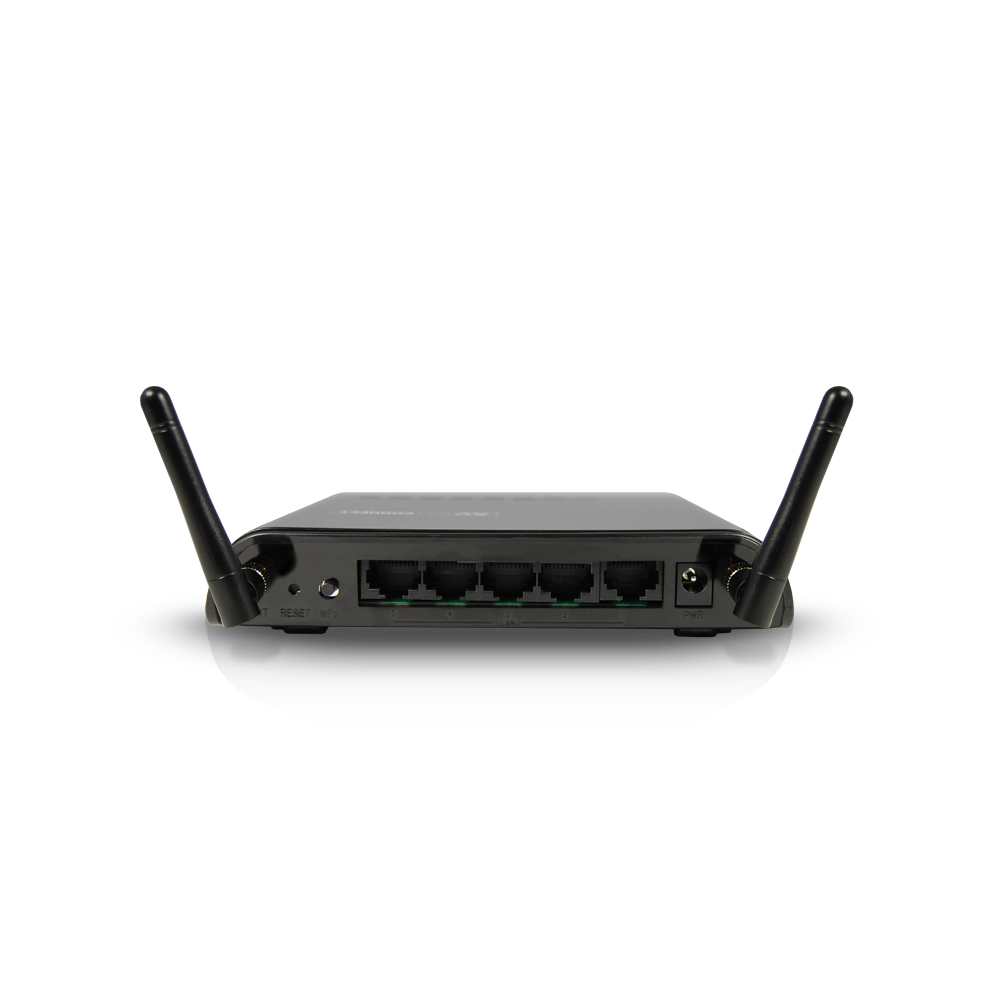
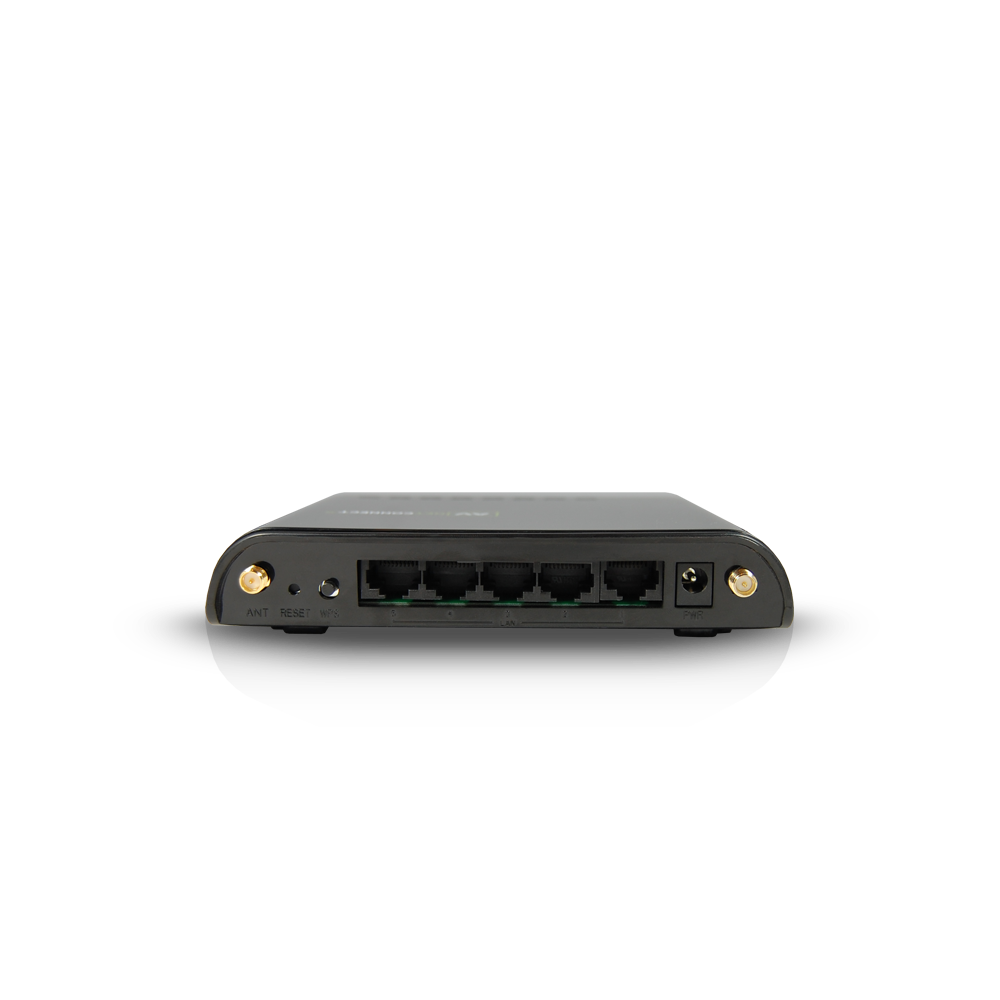
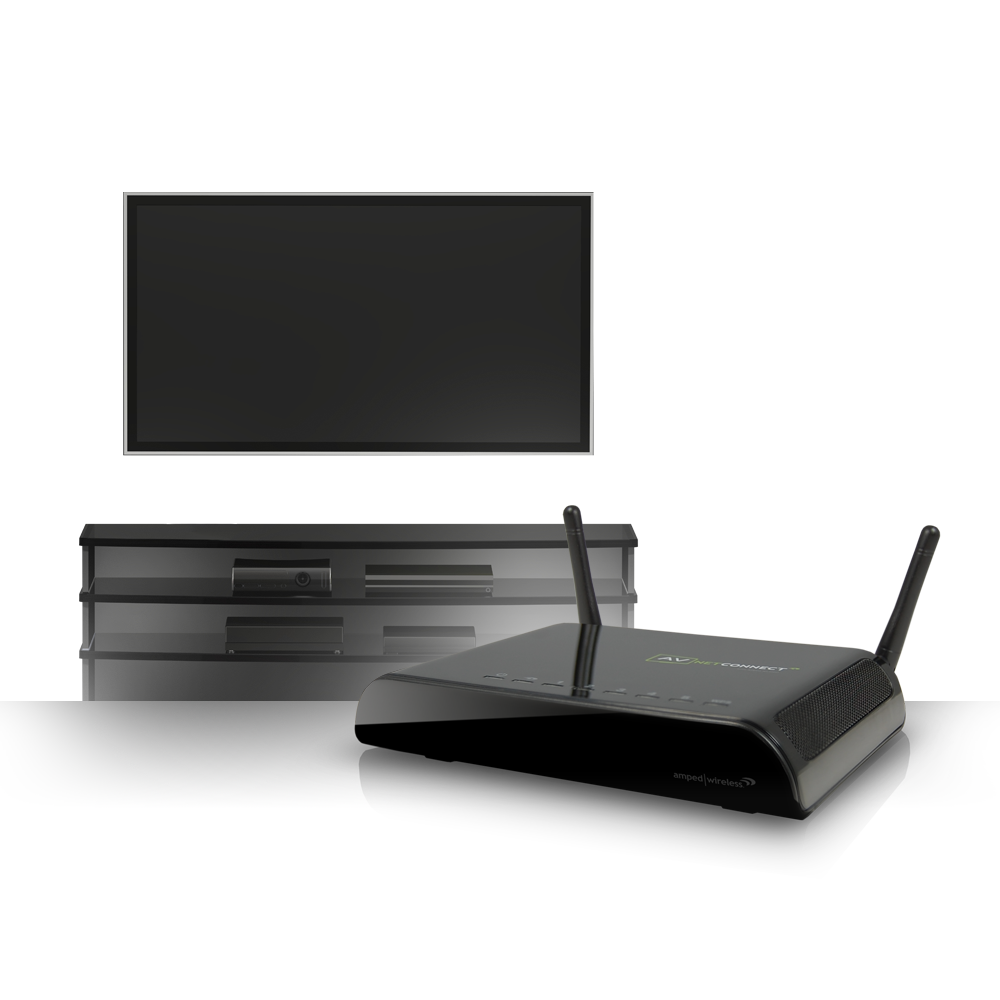
The Amped Wireless AV Net Connect connects your Internet-ready audio and video devices, such as Blu-ray™ players, game consoles, Internet-ready TVs and more, to your home Wi-Fi network for Internet access. The AV Net Connect eliminates the need to run Ethernet cables to your media center by creating a connection to your home Wi-Fi network using built in Wi-Fi amplifiers to ensure a reliable connection that’s fast enough for HD media streaming and online gaming. The AV Net Connect connects to your AV devices using the five (5) Ethernet ports on the back panel. In addition, the AV Net Connect also boosts and repeats the Wi-Fi signal from your home Wi-Fi network so that other Wi-Fi enabled AV devices can connect to the AV Net Connect for a more reliable connection.
How It Works
+ Optimized for HD Video and Audio
+ Powerful, Universal, Self-Healing Wi-Fi
+ Smart Security / Parental Features
300Mbps 802.11n wireless speeds for streaming HD media
Prioritizes audio and video content within the network (WMM) to eliminate lag from videos, audio and gaming
Wireless amplifiers strengthen Wi-Fi connections for more reliability and faster speeds
Self-healing Wi-Fi fixes dropped links to your home network automatically to ensure connectivity
Works with all brands of Wi-Fi routers / networks
Set schedules for online access
Adjust the power of your wireless coverage
Restrict network access to specific users
Supports the latest in wireless security (WPA2, WPA)
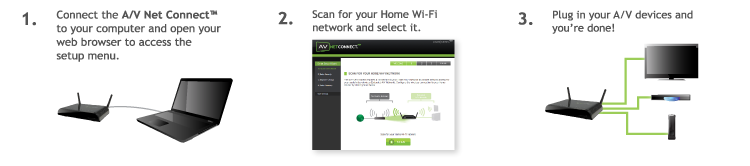
Easy 3 Step Setup
Key Features
Easily connect Audio and Video devices (wireless and wired) to your home wireless network and the Internet
Eliminate the need to run cables between your home router and your media room
Provides 5 wired Ethernet ports for connecting your Blu-ray player, game console, Internet-ready television, and more
Uses high power Wi-Fi amplifiers to create a strong, self-healing connection to your home wireless network
Repeats your home Wi-Fi network to create a stronger wireless network within your media room for connecting your wireless AV devices, computers and more
The Amped Wireless Technology
Specifications are subject to change without notice.
* Range specifications are based on performance test results. Actual performance may vary due to differences in operating environments, building materials and wireless obstructions. Performance may increase or decrease over the stated specification. Wireless coverage claims are used only as a reference and are not guaranteed as each wireless network is uniquely different. Maximum wireless signal rate derived from IEEE 802.11 standard specifications. Actual data throughput may vary as a result of network conditions and environmental factors. N300 wireless signal speeds achieved when connecting to other N300 or later 2.4GHz devices. Output power specifications are based on the maximum possible radio output power plus antenna gain.
May not work with non-standard Wi-Fi routers or routers with altered firmware or proprietary firmware, such as those from third party sources or some Internet service providers. May not work with routers that do not comply with IEEE or Wi-Fi standards.
Wi-Fi, Wi-Fi Protected Setup, and WPA2 are either registered trademarks or trademarks of the Wi-Fi Alliance.
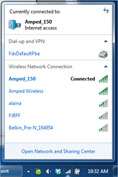
Click on the Signal bars icon on the bottom right hand corner of your screen. If you are connect to any Wi-Fi networks, click on the connected network then click disconnect.
Windows XP
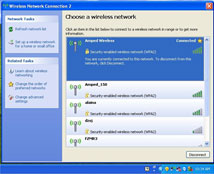
Click on the Wireless Network Adapter icon on the bottom right hand corner of your screen. If you are connect to any Wi-Fi networks, click on the connected network then click disconnect.
Mac
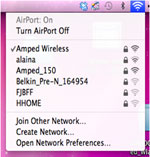
Click on the Airport Icon, if your Airport is on then click on Turn Airport Off.
Windows Vista
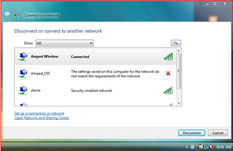
Click on the Wireless Network Adapter icon on the bottom right hand corner of your screen. If you are connect to any Wi-Fi networks, click on the connected network then click disconnect.
Make sure your A/V Net Connect is connected to your computer with an Ethernet cable.
Reboot the A/V Net Connect by unplugging the power and plugging it back in.
Wait 2 minutes, type setup.ampedwireless.com into your web browser's address bar.
Make sure your computer is connected to the A/V Net Connect using the included Ethernet cable. Do not try to connect with a wireless connection. Ensure that the power on the A/V Net Connect is on.
Try to use a different web browser. We recommend the Google Chrome web browser.
Try to open your web browser to the default IP address by putting this number into your web browser instead: 192.168.1.240
Make sure your network adapter is set to automatically obtain an IP.
Power off (unplug the power adapter) the A/V Net Connect and power it back on. Try again.
Reset your A/V Net Connect to default settings by holding the Reset Button (located on the back panel) for ten (10) seconds and try again.
The A/V Net Connect may be out of range. Move the A/V Net Connect closer towards the wireless router and try the Setup Wizard again from the Web Menu.
The Home Network may be a dual band wireless router. The A/V Net Connect supports 802.11b/g/n 2.4GHz routers. If your Home Network uses a dual-band router, it will not work with the A/V Net Connect. Adjust the dual-band router's configuration to disable the 5GHz band.
Go to the Smart Features tab in the web menu and access the Wireless Coverage Controls. Make sure the setting is at 100% and try again.
Make sure that your Home Network's wireless SSID is broadcasting and not hidden.
The connection to your Home Network has been dropped. This can be caused by several events to your home wireless connection. When this occurs you may rescan for another network by accessing http://setup.ampedwireless.com to connect to and repeat or you may try to fix the issues with your Home Network and your home wireless router.
If you cannot access the setup menu, check to see that your A/V Net Connect is still on. Reboot the A/V Net Connect by unplugging the power adapter and plugging it back in. Check to see if your connection has been reestablished by viewing a website. If you do not have a connection, logon to http://setup.ampedwireless.com and configure a new Home Network connection.
Check to see that your home wireless router is still on. If it has been turned off please turn it back on. The A/V Net Connect should automatically reconnect to your Home Network within 10 minutes.
Check to see that your home wireless router settings have not changed. Any changes to the SSID, security, or channel number from the original settings will disconnect the A/V Net Connect's connection to the home network. If you are not sure which settings have been changed, simply run the Smart Setup Wizard again from the web menu and reconfigure your Home Network connection.
The A/V Net Connect's web menu page appears automatically when the connection to your home Wi-Fi network drops. Run through the Smart Setup Wizard again to reconfigure the connection to your Home Wi-Fi Router.
Check that your Home Wi-Fi router is up and running correctly. Try connecting to your home Wi-Fi router wirelessly to see if you have Internet access. If you do not, you will need to fix your home Wi-Fi router's issues first before running the Smart Setup Wizard for the A/V Net Connect.
Log into the Web Menu for your dual-band wireless router and adjust the wireless settings. Change the wireless band to 2.4GHz single band mode only or mixed 2.4GHz and 5GHz mode.
The Home Network itself may not have Internet access. Check to see that you have internet access by connecting directly to the Home Network first. If you are able to go online then this is not a problem. If you cannot go online, then the Home Network's Internet connection must first be resolved.
You may have a DNS issue and the A/V Net Connect is not obtaining the IP settings from your Home Network. Try to reboot the A/V Net Connect and then accessing a website. If that fails, then reboot the Home Router to see if that fixes it.
There may be an IP conflict with your Home Network and your Extended Network. Try to adjust the IP Settings of your Extended Network using IP values that are different from your Home Network.
Power on and off the A/V Net Connect and try again.
The connection to the Home Network may be down. Use an Ethernet cable and connect directly to the A/V Net Connect. Access http://setup.ampedwireless.com and run through the Smart Setup Wizard again. After you have successfully reset the Home Network connection, try connecting wirelessly again.
Check that your wireless adapter supports WPA wireless security. If it does not then you will need to change the wireless security on the A/V Net Connect. Go to the Web Menu, select Wireless Settings and then Wireless Security. Select the Extended Network from the drop down menu and either disable security or downgrade the security to WEP. Try connecting again.
The connection to the Home Network may be down. Use an Ethernet cable and connect directly to the A/V Net Connect. Access http://setup.ampedwireless.com and run through the Smart Setup Wizard again. After you have successfully reset the Home Network connection, try connecting wirelessly again.
Connect to your A/V Net Connect and try to access http://setup.ampedwireless.com using your web browser.
If you are advanced in networking troubleshooting, log onto your home router's web interface. Look for the DHCP client list and try to find the IP address of your A/V Net Connect assigned by your home router. Once you have it, connect to the A/V Net Connect using an Ethernet cable. Open your web browser and enter the IP address into the address bar.
Reset the A/V Net Connect back to default settings and try the Smart Setup Wizard again. To reset the Repeater back to default settings, push the Reset Button (on the back panel) down for five (5) to ten (10) seconds then let go. After the A/V Net Connect has fully reset, use an Ethernet cable and connect to the A/V Net Connect. Login to the Web Menu at http://setup.ampedwireless.com and run through the Wizard.
You may be too far away from your Home Network. The closer the A/V Net Connect is to your Home Network, the better its connection will be. The A/V Net Connect must have a strong signal in order to repeat the signal with fast speeds and further range. Move the A/V Net Connect closer to your Home Network and try again.
You may be downloading from the Internet and not within your Home Network or Extended Network. Files transferred through the Internet are limited by your ISP speed and the data download speeds from the website that you are downloading from.
Your computer may be using an older Wi-Fi adapter with lower speed limits (802.11b/g).
Check to see that your wireless output settings are at 100%. Go to the Web Menu, Wireless Settings and check the Advanced Settings. Make sure the output power is at 100%.
Your A/V Net Connect may be installed in a poor location. Avoid setting up your A/V Net Connect in areas with high interference, such as, near fridges, microwaves, metallic objects and low surfaces. Install the A/V Net Connect in a higher location if possible.
Check the connections of the Antennas to the A/V Net Connect. Tighten them if necessary.
Adjust the Antennas of the A/V Net Connect in different angles.
The A/V Net Connect supports WPS connections, however, some companies may use proprietary code for their own push button configurations. Try connecting using the Windows wireless utility or Mac wireless utility instead.
Connect your AV devices to the Internet Great for connecting your Internet-ready Blu-ray™ players, game consoles, smart televisions, media players, set top boxes and other audio and video devices to your home Wi-Fi network for Internet access. Eliminate the need to run Ethernet cables to your home router!
Connects up to 5 Wired AV Devices Connect up to 5 wired AV devices directly to the AV Net Connect
Works with Wireless AV Devices Connect any Wi-Fi enabled AV devices to the AV Net Connect for a stronger, faster link to your home Wi-Fi network. The AV Net Connect repeats the signal from your home Wi-Fi network to provide a more powerful connection with the use of high power Wi-Fi amplifiers
Smart Security / Parental Control Features You're in control! Smart security features allow you to restrict access to specific users, set a daily time schedule for when the network is available and when it is not and control how far your extended wireless network coverage reaches through wireless output power adjustments. The AV Net Connect also supports secure push button setup for WPS enabled devices.
Universal Compatibility The AV Net Connect works with most 2.4GHz 802.11b/g or n wireless routers and Wi-Fi networks
Fast Performance for HD Streaming The AV Net Connect features a 300Mbps 802.11n wireless bandwidth channel for streaming HD media from your media center to your home network*
Simple Setup The Smart Setup Wizard connects the AV Net Connect to your home Wi-Fi network in minutes. Simply enter the setup URL, scan for your wireless network, select it and you're done!
Specifications are subject to change without notice.
* Range specifications are based on performance test results. Actual performance may vary due to differences in operating environments, building materials and wireless obstructions. Performance may increase or decrease over the stated specification. Wireless coverage claims are used only as a reference and are not guaranteed as each wireless network is uniquely different. Maximum wireless signal rate derived from IEEE 802.11 standard specifications. Actual data throughput may vary as a result of network conditions and environmental factors. N300 wireless signal speeds achieved when connecting to other N300 or later 2.4GHz devices. Output power specifications are based on the maximum possible radio output power plus antenna gain.
May not work with non-standard Wi-Fi routers or routers with altered firmware or proprietary firmware, such as those from third party sources or some Internet service providers. May not work with routers that do not comply with IEEE or Wi-Fi standards.
Wi-Fi, Wi-Fi Protected Setup, and WPA2 are either registered trademarks or trademarks of the Wi-Fi Alliance.
Browse the selections below to view support materials and troubleshooting tips. FAQs provide you with answers to frequently asked questions. The Download section provides you with firmware upgrades or device drivers and other related software. To view the User's Guide for your product check out the Documentation section. If you are having problems finding what you need, contact us.
Wired or wireless PC/Mac and an available 802.11b/g/n wireless network
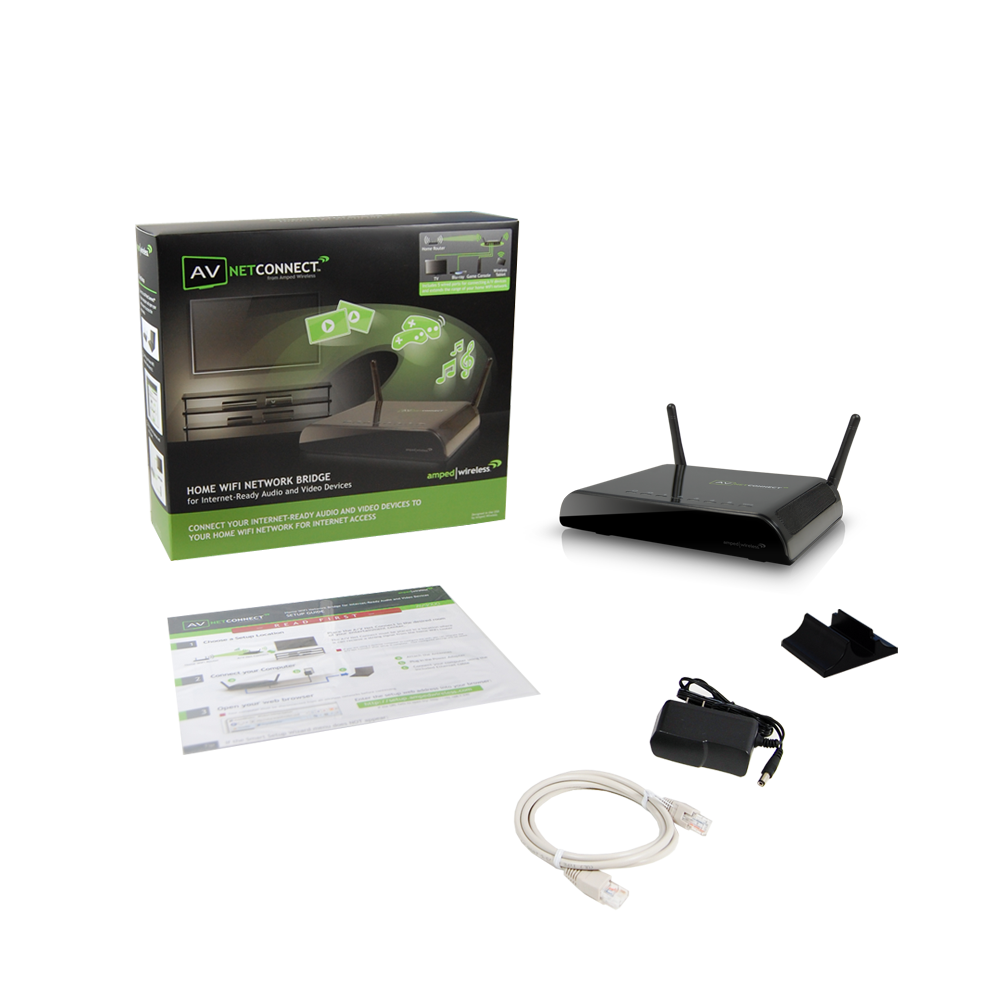
Package Contents:
1 x A/V Net Connect 2 x Detachable High Gain 2dBi Low Profile Antenna 1 x Product Stand 1 x Ethernet cable 1 x Quick Installation Guide 1 x CD: Documentation














 Easily connect Audio and Video devices (wireless and wired) to your home wireless network and the Internet
 Eliminate the need to run cables between your home router and your media room
 Provides 5 wired Ethernet ports for connecting your Blu-ray player, game console, Internet-ready television, and more
 Uses high power Wi-Fi amplifiers to create a strong, self-healing connection to your home wireless network
 Repeats your home Wi-Fi network to create a stronger wireless network within your media room for connecting your wireless AV devices, computers and more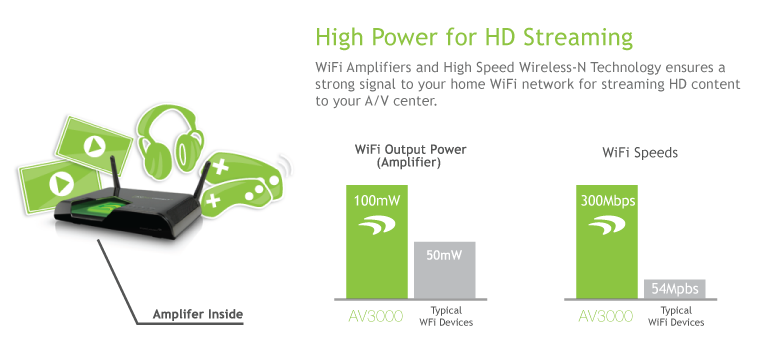
 Connect your AV devices to the Internet
 Connects up to 5 Wired AV Devices
 Works with Wireless AV Devices
 Smart Security / Parental Control Features
 Universal Compatibility
 Fast Performance for HD Streaming
 Simple Setup