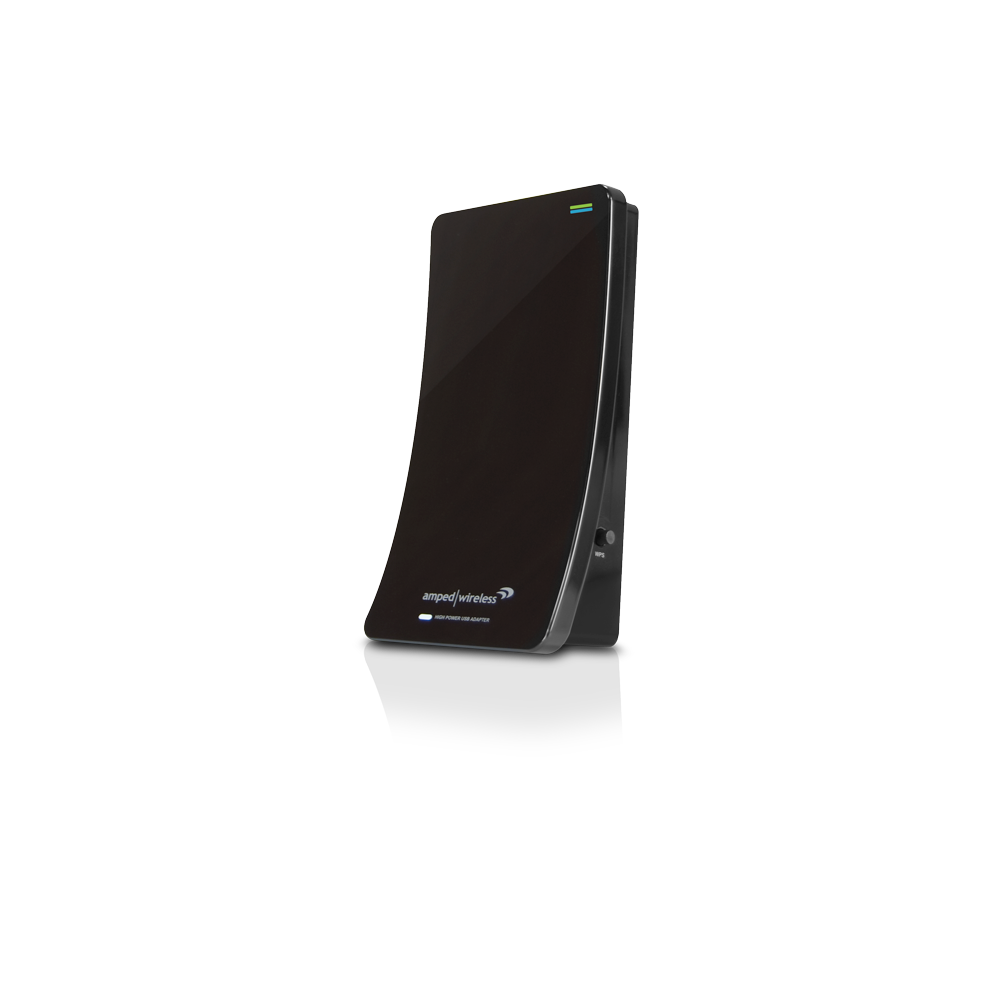
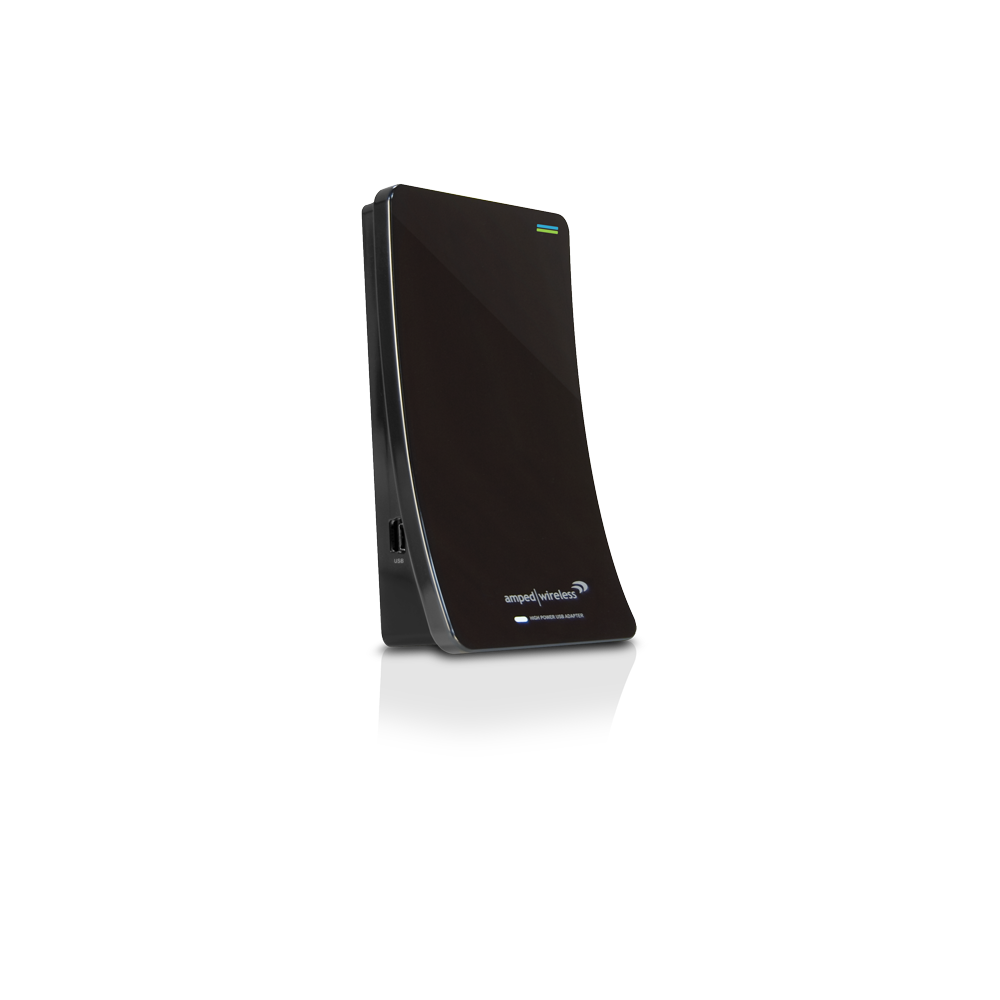
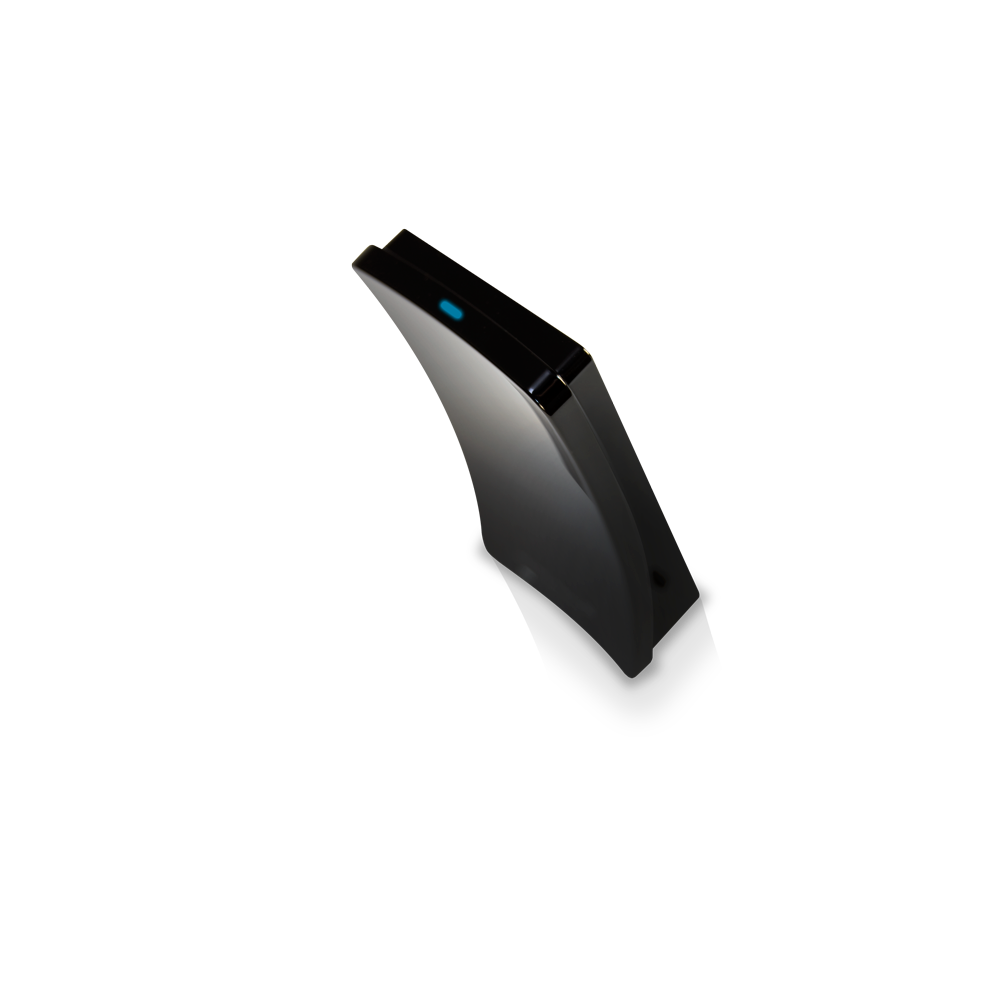
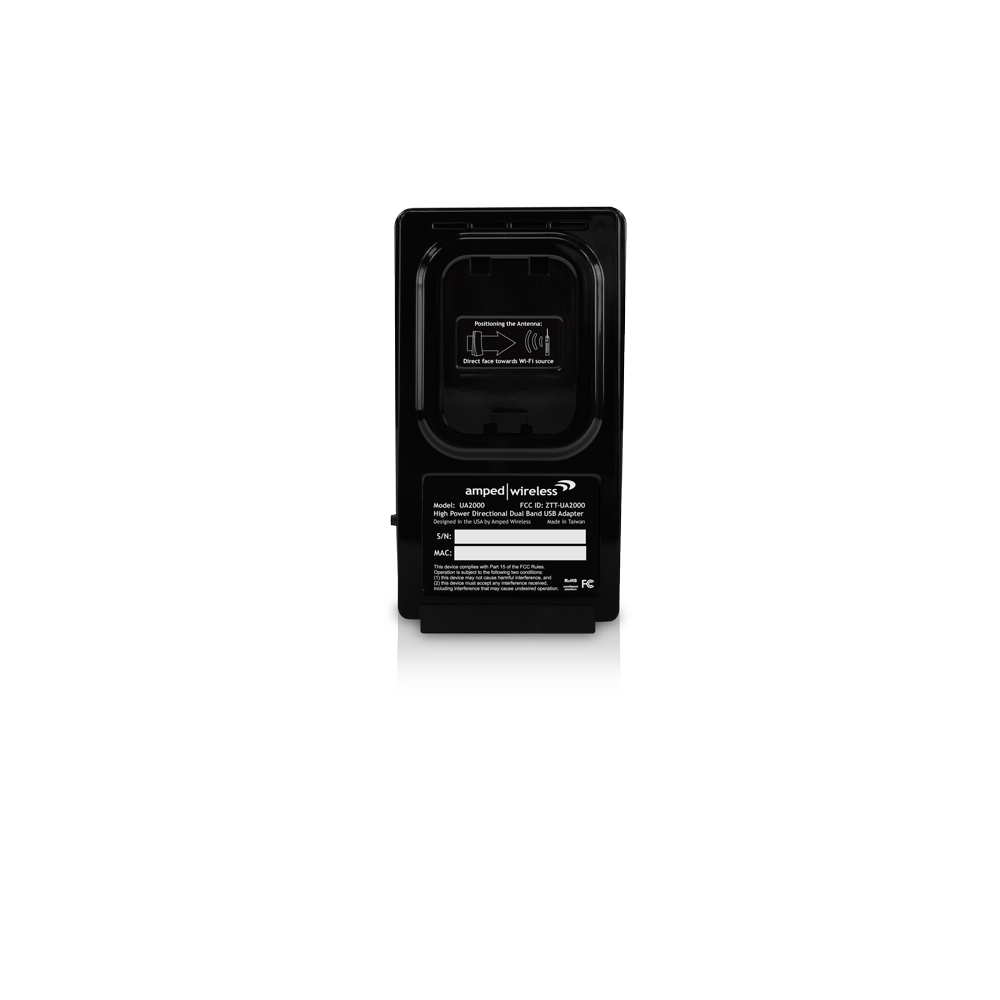
The Amped Wireless High Power Wireless-N Directional Dual Band USB Adapter provides your Mac or Windows laptop or desktop computer with high speed dual band N600 Wi-Fi access and superior wireless range. The UA2000 is a high performance wireless network adapter that allows your PC or Mac to connect to 2.4GHz or 5.0GHz 802.11a/b/g/n Wi-Fi networks from up to three times greater distance than other wireless adapters through the use of a high gain directional antenna, dual band power amplifiers and wireless reception amplifiers. The UA2000 can also be clipped onto your laptop monitor for added mobility.
Key Features
Connect your Mac or PC, laptop or desktop computer to Wi-Fi networks at greater distances
Dual high power 2.4GHz amplifiers, dual high power 5.0GHz amplifiers and an advanced directional high gain dual band antenna provide maximum range
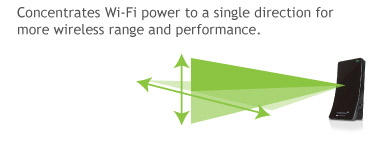
The advanced dual polarity, dual band directional antenna concentrates Wi-Fi signals in a single direction for more range
Ultra Fast, Dual Band Technology
Connect to both, 2.4GHz, and 5.0GHz Wi-Fi networks at maximum speeds (600Mbps total) for transferring large files and streaming HD media
Supports WPS push button configuration for one-touch setup
Smart 3 Step Setup (Mac and PC)
Advanced High Gain Directional Antenna
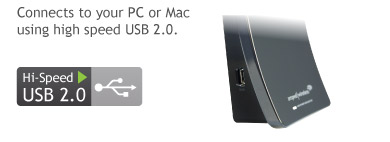
USB 2.0 Connection
Laptop Clip
Dual USB Cable
The Amped Wireless Difference
Specifications are subject to change without notice.
* Range specifications are based on performance test results. Actual performance may vary due to differences in operating environments, building materials and wireless obstructions. Performance may increase or decrease over the stated specification. Wireless coverage claims are used only as a reference and are not guaranteed as each wireless network is uniquely different. Maximum wireless signal rate derived from IEEE 802.11 standard specifications. Actual data throughput may vary as a result of network conditions and environmental factors. N600 wireless signal speeds achieved when connecting to other N600 or later 802.11n/ac devices. Output power and antenna gain ratings are based on 2.4GHz operating modes. 5.0GHz output power and antenna gain will be lower due to regulations.
Wi-Fi, Wi-Fi Protected Setup, and WPA2 are either registered trademarks or trademarks of the Wi-Fi Alliance.
Insert the CD into your CD drive (or DVD) and click on Start, then My Computer. Find your CD or DVD drive and right click it, select explore or open. Find the autoload.exe file and double click it to access the CD menu.
Check to see that your CD-drive is working correctly by inserting another disk first then retry the Amped Wireless installation disk.
Insert the CD into your CD drive (or DVD) and click on the CD icon that appears on your desktop (normally on the upper right corner). Find the file titled START HERE.HTML and click it. The menu should appear.
Check to see that your CD-drive is working correctly by inserting another disk first then retry the Amped Wireless installation disk.
The wireless adapter may not be positioned optimally. The directional antenna on the wireless adapter should be pointed towards the wireless source. Double check that the antenna is positioned optimally and try again.
Verify that the adapter is firmly inserted into your USB drive and try to scan for networks again.
Check to see that the wireless network you are connecting to is functioning correctly. If possible, locate your wireless router and see that the wireless LED is blinking correctly. If not, check the connection and configuration of your wireless router.
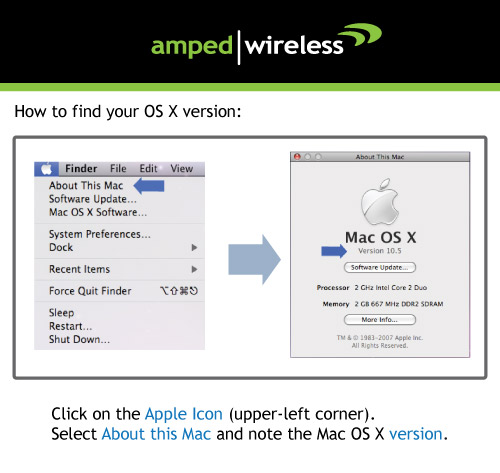
(Mac Solution) You may need to activate your wireless adapter. Click the Apple icon, select System Preferences, then click on Network. Highlight the adapter titled Ethernet Adaptor (en#) for OS X 10.5 and below and click Advanced, then click Apply. For OS X 10.6 and 10.7 select the adapter titled Amped Adapter and click Apply. Try to scan for networks again.
(Windows Solution) The wireless adapter may be disabled. Go to the Start menu, select Control Panel. Then select Device Manager and locate the Amped Wireless adapter under the Network Adapters category. Right click the Amped Wireless adapter and check to see if it is disabled. If disabled, enable the adapter and try to scan for networks again. If there is a problem with the driver, it will also be displayed here. Check solution (f) to solve this issue.
Uninstall the software by clicking Start, then select Control Panel, then select Programs. Find the Amped Wireless program and uninstall it. Once fully uninstalled, remove the adapter from your USB port, reinstall the Amped Wireless software using the supplied instructions and try again.
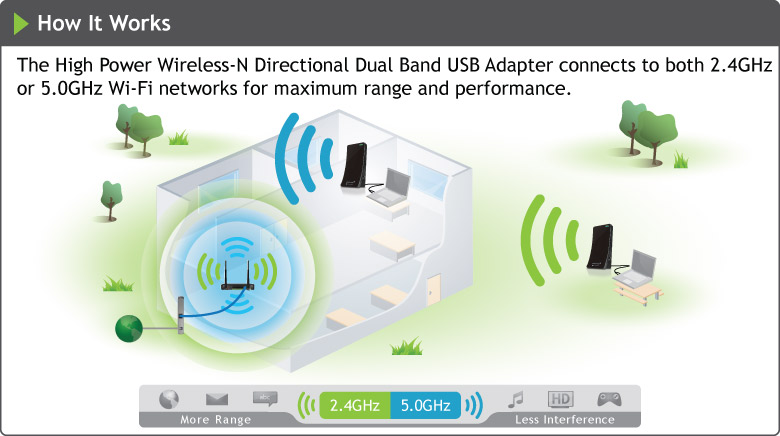
The adapter will scan and detect both 2.4GHz and 5.0GHz networks. Each network will have its own identification name (SSID). To connect to a 2.4 or 5.0GHz network, simply select the SSID of the network with the desired frequency. The adapter will automatically operate on the frequency of the chosen network.
The adapter can be configured to work only with the 2.4GHz frequency or the 5.0GHz frequency. To adjust this setting, go the Amped Wireless Utility and click the Advanced tab. Adjust the Operational Mode to either 2.4GHz B+G+N or 5.0GHz A+N.
If the LED is not on, this means the adapter does not have power or is installed incorrectly. Verify that the adapter is firmly inserted into your USB drive and try to scan for networks again.
Unplug the USB adapter from the USB port and plug it back in firmly. Re-scan for wireless networks.
(Mac Solution) You may need to activate your wireless adapter. Click the Apple icon, select System Preferences, then click on Network. Highlight the adapter titled Ethernet Adaptor (en#) for OS X 10.5 and below and click Advanced, then click Apply. For OS X 10.6 and 10.7 select the adapter titled Amped Adapter and click Apply. Try to scan for networks again.
(Windows Solution) The wireless adapter may be disabled. Go to the Start menu, select Control Panel. Then select Device Manager and locate the Amped Wireless adapter under the Network Adapters category. Right click the Amped Wireless adapter and check to see if it is disabled. If disabled, enable the adapter and try to scan for networks again. If there is a problem with the driver, it will also be displayed here. Check solution (e) to solve this issue.
Uninstall the software by clicking Start, then select Control Panel, then select Programs. Find the Amped Wireless program and uninstall it. Once fully uninstalled, remove the adapter from your USB port, reinstall the Amped Wireless software using the supplied instructions and try again.
You may have a mismatch in your SSID or your wireless security key. Double check the security key that you are using for your current wireless connection. Double check that the name of the SSID is the correct name of the network you are trying to connect to.
You may have an incorrect IP address assignment.
For Windows XP and 2000: Open the Amped Wireless Utility and go to the General tab. Click Renew IP.
For Windows 7 and Vista: Open the Windows wireless utility by clicking the wireless icon on the bottom right corner. Right click the wireless network that you are connected to and click Status. Click diagnose to allow Windows to reset your connection.
For Mac OS X: Open the Amped Wireless Utility and disconnect from your current network. Wait a few moments and connect again. If this does not work, unplug the USB adapter from your Mac and plug it back in. Connect to your network again and check your Internet connection.
The wireless router that you are connecting to may have lost its internet connection. If possible, check the connection between your router and the ISP.
The adapter may not be positioned optimally. Reorient the adapter so that the face of the adapter is towards the wireless source. Check your signal strength again. Wireless signal strength degrades as you move further away from the wireless router.
The wireless router you are connected to may not support 802.11n speeds. Check the speed of your wireless router. Make sure it is an 802.11n router.
The wireless router may not be configured for full 802.11n speeds. Check the current wireless settings on your router to ensure that it is in 802.11n mode.
The wireless channel you are using may be congested. Change the wireless channel of the router and reconnect to the network.
There may be many wireless users on your network. Check that your wireless network is not congested with wireless users.
Users on your wireless network may be utilizing the available bandwidth. Other users may be using data intensive applications such as media streaming, downloading large files and gaming. Change to a 5.0GHz network if available.
If you have an original wireless adapter or Ethernet adapter that may be causing problems with your wireless connection or making your wireless connection slow. To disable it:
Windows: Click Start, then Control Panel, then Device Manager. Under Network Adapters locate your original wireless or wired adapter (not the Amped Wireless adapter). Right click the adapter and select disable.
Mac: Click on the wireless icon in the top right corner of your desktop. Select Turn Airport Off.
The adapter may not be positioned optimally. Reorient the adapter so that the face of the adapter is towards the wireless source. Check your signal strength again. Wireless signal strength degrades as you move further away from the wireless router.
Your wireless environment, home or office may have objects that cause wireless interference. Obstructions such as walls, metal appliances, microwaves among other things may cause wireless signal strength to degrade. Try to use the wireless adapter and your wireless router away from these objects.
The channel of your wireless network may be congested. Change the channel of your wireless network by configuring the settings on your wireless router.
If you have an original wireless adapter or Ethernet adapter that may be causing problems with your wireless connection or making your wireless connection slow. To disable it:
Windows: Click Start, then Control Panel, then Device Manager. Under Network Adapters locate your original wireless or wired adapter (not the Amped Wireless adapter). Right click the adapter and select disable.
Mac: Click on the wireless icon in the top right corner of your desktop. Select Turn Airport Off.
For Windows XP and 2000: Open the Amped Wireless Utility and go to the General tab. Click Renew IP.
For Windows 7 and Vista: Open the Windows wireless utility by clicking the wireless icon on the bottom right corner. Right click the wireless network that you are connected to and click Status. Click diagnose to allow Windows to reset your connection
If you feel that your original wireless adapter or Ethernet adapter is causing problems with your wireless connection or making your wireless connection slow you may need to disable your original adapter.
Windows: Click Start, then Control Panel, then Device Manager. Under Network Adapters locate your original wireless or wired adapter (not the Amped Wireless adapter). Right click the adapter and select disable.
Mac: Click on the wireless icon in the top right corner of your desktop. Select Turn Airport Off.
The wireless adapter supports WPS connections, however, some companies may use proprietary code for their own push button configurations. Try connecting using the Windows wireless utility or Mac wireless utility instead.
Whether you're using a Mac or Windows laptop or desktop PC, the UA2000 attaches to an available USB port on your computer and provides long range, dual band (2.4GHz and 5.0GHz) Wi-Fi connectivity for connecting to your home Wi-Fi network or a Wi-Fi hotspot at maximum speed.
High Power, Advanced Technology = Increased Wi-Fi Range
Dual high power 2.4GHz amplifiers, dual high power 5.0GHz amplifiers (increases wireless transmission range), dual low noise amplifiers (increases wireless reception range), and an advanced high gain, dual polarity, dual band directional Wi-Fi antenna provides maximum range and performance.
Advanced Dual Band Directional Antenna
The advanced high gain, dual band directional antenna concentrates Wi-Fi signals in a single direction to maximize the signal strength to your Wi-Fi network and create a more reliable connection.
Fast Dual Band Speeds for Media Intensive Applications
MIMO and dual band technology allow the High Power Directional USB Adapter to connect to both long range 2.4GHz Wi-Fi networks or interference-free 5.0GHz Wi-Fi networks at maximum speeds of up to 600Mbps combined. Great for transferring large data files quickly and streaming HD media without buffering or lag.
Simple Setup and WPS Support
Setup is quick and simple: Insert the installation CD, install the software and plug in the High Power Directional USB Adapter. The UA2000 also supports one-touch, WPS push button configuration for setting up new network connections.
Dual USB Connectors
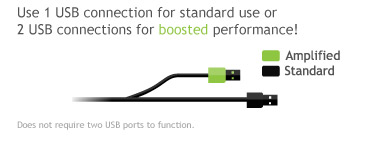
Uses two USB ports to provide maximum power and range. The Adapter wiill also work with only one USB connection if only one USB port is available.
Universal Compatibility
The High Power USB Adapter works great with all 2.4GHz and 5.0GHz 802.11a/b/g or n wireless routers, Wi-Fi networks and manufacturers.
Sleek and Travel Friendly
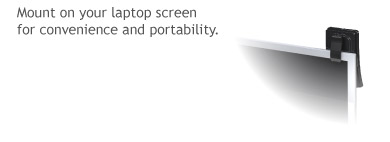
With its sleek enclosure and the included laptop monitor clip, the UA2000 can be mounted onto any laptop monitor for added convenience and mobility.
Specifications are subject to change without notice.
* Range specifications are based on performance test results. Actual performance may vary due to differences in operating environments, building materials and wireless obstructions. Performance may increase or decrease over the stated specification. Wireless coverage claims are used only as a reference and are not guaranteed as each wireless network is uniquely different. Maximum wireless signal rate derived from IEEE 802.11 standard specifications. Actual data throughput may vary as a result of network conditions and environmental factors. N600 wireless signal speeds achieved when connecting to other N600 or later 802.11n/ac devices. Output power and antenna gain ratings are based on 2.4GHz operating modes. 5.0GHz output power and antenna gain will be lower due to regulations.
Wi-Fi, Wi-Fi Protected Setup, and WPA2 are either registered trademarks or trademarks of the Wi-Fi Alliance.
Long Range 2.4 or 5.0GHz Wireless Connectivity for your Mac or PC
Browse the selections below to view support materials and troubleshooting tips. FAQs provide you with answers to frequently asked questions. The Download section provides you with firmware upgrades or device drivers and other related software. To view the User's Guide for your product check out the Documentation section. If you are having problems finding what you need, contact us.
Dual Low Noise Amplifier Dual 2.4GHz Power Amplifiers Dual 5.0GHz Power Amplifiers
Wireless Sensitivity:
-95 dBm
Wireless Output Power:
26 dBm max
Wireless Security:
WEP, WPA, WPA2, WPA Mixed, WPS
Antenna:
High Gain Dual Band, Dual Polarity Directional Antenna
Interface:
USB 2.0
Warranty:
1 Year
Setup Requirements:
Wireless 802.11a/b/g/n, 2.4/5.0GHz Network PC with Windows 2000, XP (32/64 bit), Vista (32/64 bit) or 7 (32/64 bit) Mac OS X 10.4, 10.5, 10.6 or 10.7 CD/DVD drive 100 MB of free disk space One available USB 2.0 port Two USB 2.0 port for maximum performance
Package Contents:
1 x High Power Wireless-N Directional Dual Band USB Adapter 1 x Dual USB 2.0 Cable 1 x Setup Guide 1 x CD: Users Guide and Software 1 x Laptop Monitor Mounting Clip
Specifications are subject to change without notice. * Range specifications are based on performance test results. Actual performance may vary due to differences in operating environments, building materials and wireless obstructions. Wireless coverage claims are used only as a reference and are not guaranteed as each wireless network is uniquely different. Maximum wireless signal rate derived from IEEE 802.11 standard specifications. Actual data throughput may vary as a result of network conditions and environmental factors. AC1200 wireless signal speeds achieved when connecting to other 802.11ac devices.













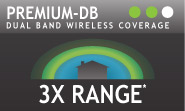


 Supports WPS push button configuration for one-touch setup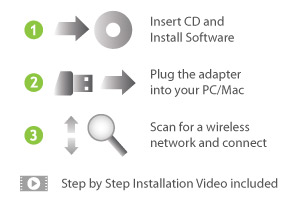

 Add Long Range Wi-Fi to your Mac or PC
 High Power, Advanced Technology = Increased Wi-Fi Range
 Advanced Dual Band Directional Antenna
  Fast Dual Band Speeds for Media Intensive Applications
 Simple Setup and WPS Support
 Dual USB Connectors
 Universal Compatibility
 Sleek and Travel Friendly